
Getting started can often be a challenge. Even for experienced developers like us, diving into new technologies frequently comes with obstacles. Understanding the principles behind developing a Contao plugin and applying them to enhance your own Contao website with custom plugins takes time. While the documentation provides a solid overview, it often reaches its limits when it comes to more specific questions.
For this reason, we decided to create a guide that explains how to build a simple “Hello World” Contao plugin. This article is easy to follow and provides you with the essential background knowledge needed to create your own Contao plugins – for both the frontend and backend development.
In this article, you will learn:
- How to set up the basic structure of a plugin
- How to display a “Hello World” message in the frontend
- How the data structure should be organized
- How to establish a connection to the database
By the end, you will have programmed a “Hello World” Contao plugin that additionally displays messages defined in the backend.
If you need support with development or ongoing maintenance of your websites, take a look at our CMS solutions or our support for websites and web applications. We’re happy to help.
The plugin source code is available on GitHub at this link. Feel free to use it for testing purposes.
The File Structure of a Contao Plugin
The Contao plugin file structure must be strictly followed so that the Contao Manager can recognize the plugin correctly and load it without issues.
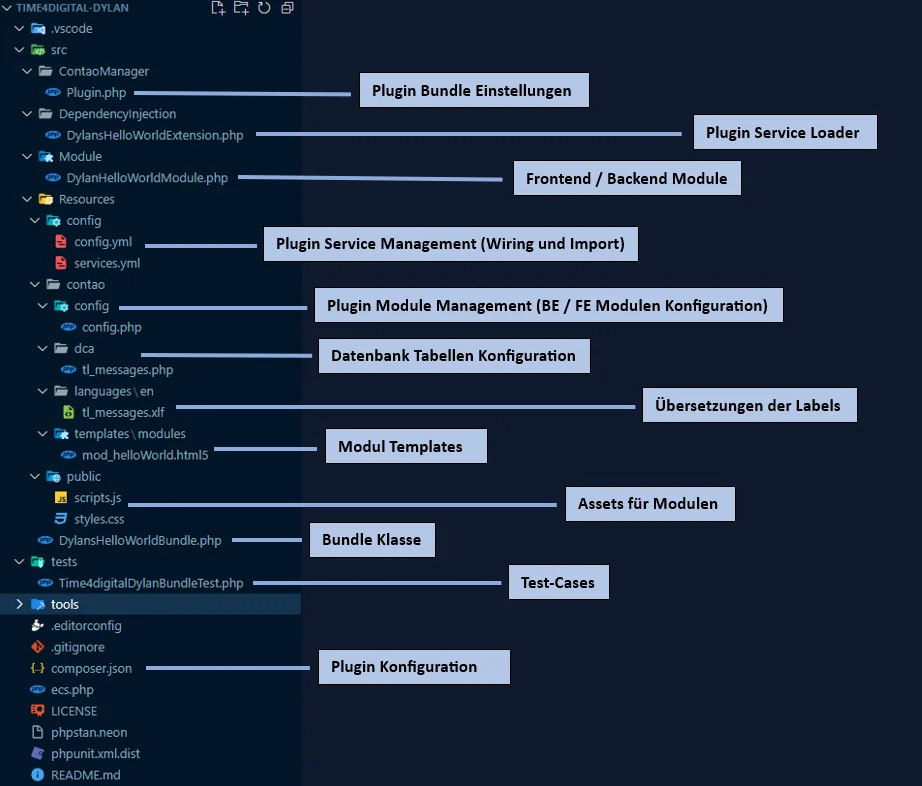
Contao Plugin: Basic Structure
First, the Contao plugin must be configured so that it is recognized and installed by the Contao Manager. To achieve this, the following classes need to be created and adjusted accordingly:
Composer Setup
Contao uses PHP Composer to manage modules, extensions, and plugins. For this reason, our Contao plugin also requires a Composer configuration file located in the root directory of the plugin. If you use the example Composer JSON file, make sure to adjust all values marked with # accordingly.
./composer.json
{
  "name": "time4digital/dylans-hello-world-bundle",
  "description": "Dylan's Hello World Plugin",
  "license": "LGPL-3.0-or-later",
  "type": "contao-bundle",
  "version": "0.0.4",
  "authors": [
    {
      "name": "Ribeiro de Serra Dylan",
      "homepage": "https://www.time4digital.lu"
    }
  ],
  "homepage": "https://contao.org",
  "support": {
    "issues": "https://github.com/ridy01-backup/contao-plugins/issues",
    "source": "https://github.com/ridy01-backup/contao-plugins"
  },
  "require": {
    "php": "^8.1",
    "contao/core-bundle": "^4.13 || ^5.0"
  },
  "require-dev": {
    "bamarni/composer-bin-plugin": "^1.5",
    "contao/manager-plugin": "^2.0",
    "phpunit/phpunit": "^9.5",
    "symfony/phpunit-bridge": "^6.1"
  },
  "conflict": {
    "contao/manager-plugin": "<2.0 || >=3.0"
  },
  "autoload": {
    "psr-4": {
      "Time4digital\\\\DylansHelloWorldBundle\\\\": "src/"
    }
  },
  "autoload-dev": {
    "psr-4": {
      "Time4digital\\\\DylansHelloWorldBundle\\\\Tests\\\\": "tests/"
    }
  },
  "config": {
    "allow-plugins": {
      "bamarni/composer-bin-plugin": true,
      "contao-components/installer": true,
      "contao/manager-plugin": true
    }
  },
  "extra": {
    "bamarni-bin": {
      "bin-links": false,
      "target-directory": "tools"
    },
    "contao-manager-plugin": "Time4digital\\\\DylansHelloWorldBundle\\\\ContaoManager\\\\Plugin"
  },
  "scripts": {
    "all": [
      "@unit-tests",
      "@ecs",
      "@phpstan"
    ],
    "ecs": "@php tools/ecs/vendor/bin/ecs check src tests --config ecs.php --fix --ansi",
    "phpstan": "@php tools/phpstan/vendor/bin/phpstan analyze --ansi",
    "unit-tests": "@php vendor/bin/phpunit --colors=always"
  }
}
Structure of the Bundle Class
The bundle class is responsible for bundling your resources. This class itself does not require any additional specifications; it is sufficient to simply extend the Symfony Bundle class.
./src/DylansHelloWorldBundle.php
<?php

namespace Time4digital\DylansHelloWorldBundle;

use Symfony\Component\HttpKernel\Bundle\Bundle;

class DylansHelloWorldBundle extends Bundle
{
}
Structure of the Contao Plugin Class
The plugin class is used to load the bundle so that the Contao Manager knows that this is a Contao plugin.
./src/ContaoManager/Plugin.php
<?php

declare(strict_types=1);

namespace Time4digital\DylansHelloWorldBundle\ContaoManager;

use Contao\ManagerPlugin\Bundle\BundlePluginInterface;
use Contao\ManagerPlugin\Bundle\Config\BundleConfig;
use Contao\ManagerPlugin\Bundle\Parser\ParserInterface;
use Contao\CoreBundle\ContaoCoreBundle;
use Time4digital\DylansHelloWorldBundle\DylansHelloWorldBundle;

class Plugin implements BundlePluginInterface
{
    /**
    * {@inheritdoc}
    */
    public function getBundles(ParserInterface $parser)
    {
        return [
            BundleConfig::create(DylansHelloWorldBundle::class)
                ->setLoadAfter([ContaoCoreBundle::class]),
        ];
    }
}
Structure of the Dependency Class
The dependency class is responsible for loading the configuration and service files.
./src/DependencyInjection/DylansHelloWorldExtension.php
<?php

declare(strict_types=1);

namespace Time4digital\DylansHelloWorldBundle\ContaoManager;

use Contao\ManagerPlugin\Bundle\BundlePluginInterface;
use Contao\ManagerPlugin\Bundle\Config\BundleConfig;
use Contao\ManagerPlugin\Bundle\Parser\ParserInterface;
use Contao\CoreBundle\ContaoCoreBundle;
use Time4digital\DylansHelloWorldBundle\DylansHelloWorldBundle;

class Plugin implements BundlePluginInterface
{
    /**
    * {@inheritdoc}
    */
    public function getBundles(ParserInterface $parser)
    {
        return [
            BundleConfig::create(DylansHelloWorldBundle::class)
                ->setLoadAfter([ContaoCoreBundle::class]),
        ];
    }
}
The Config and Services Files
The config and services files are used to link the classes created within the bundle so that they are loaded and available when the plugin is installed.
./src/Resources/config/config.yml
imports:
- { resource: services.yml }
./src/Resources/config/services.yml
services:
_defaults:
    autowire: true
    autoconfigure: true
This completes the basic setup of the plugin. At this point, the plugin could be zipped, uploaded via the Contao Manager, and installed.
However, this alone is not yet sufficient to display “Hello World” in the frontend.
Contao “Hello World” Frontend Module Structure
In this section, we create a frontend module that displays “Hello World” in the frontend.
The module also loads an additional CSS and JavaScript file.
Structure of the Frontend Module Class
The module class is used to create a module in the backend, which can then be added to an article or similar content element.
./src/Module/DylanHelloWorldModule.php
<?php

namespace Time4digital\DylansHelloWorldBundle\Module;

use Contao\Module;

// This is where the CSS and JS files are registered.
// Format: bundles/bundleName/fileName.fileExtension
$GLOBALS['TL_CSS'][] = 'bundles/dylanshelloworld/styles.css';
$GLOBALS['TL_JAVASCRIPT'][] = 'bundles/dylanshelloworld/scripts.js';

class DylanHelloWorldModule extends Module
{
    // Define the template name here.
    // The name must match the template located in
    // ./src/Resources/contao/templates
    protected $strTemplate = 'mod_helloWorld';

    protected function compile()
    {
        // Using $this->Template->variableName creates variables
        // that can be accessed within the template.
        $this->Template->message = 'Hello World!';
    }
}
Registering the Frontend Module in the Backend
The config PHP file is used to register modules in the backend.
./src/Resources/contao/config/config.php
<?php

use Time4digital\DylansHelloWorldBundle\Module\DylanHelloWorldModule;

// Frontend modules
// Under “miscellaneous”, a new tab called
// “Hello World Plugin” will be created, which loads our frontend module.
$GLOBALS['FE_MOD']['miscellaneous']['Hello World Plugin'] = DylanHelloWorldModule::class;
Template File for the Frontend Module
The template file acts as a container for the module. This is where you bind the data defined in the module and build your HTML structure.
./src/Resources/contao/templates/modules/mod_helloWorld.html5
<?php $this->extend('block_searchable'); ?>

<?php $this->block('content'); ?>

<!-- Here we output the value of the message variable -->
<div class="dylan-hello-world-container">
<?= $this->message; ?>
</div>

<?php $this->endblock(); ?>
Including CSS and JS in the Contao Module
You can include your own CSS and JavaScript files in the Contao module, as defined earlier in the module class. You only need to follow the file structure below (the file names themselves do not matter):
./src/Resources/public/scripts.js
./src/Resources/public/styles.css
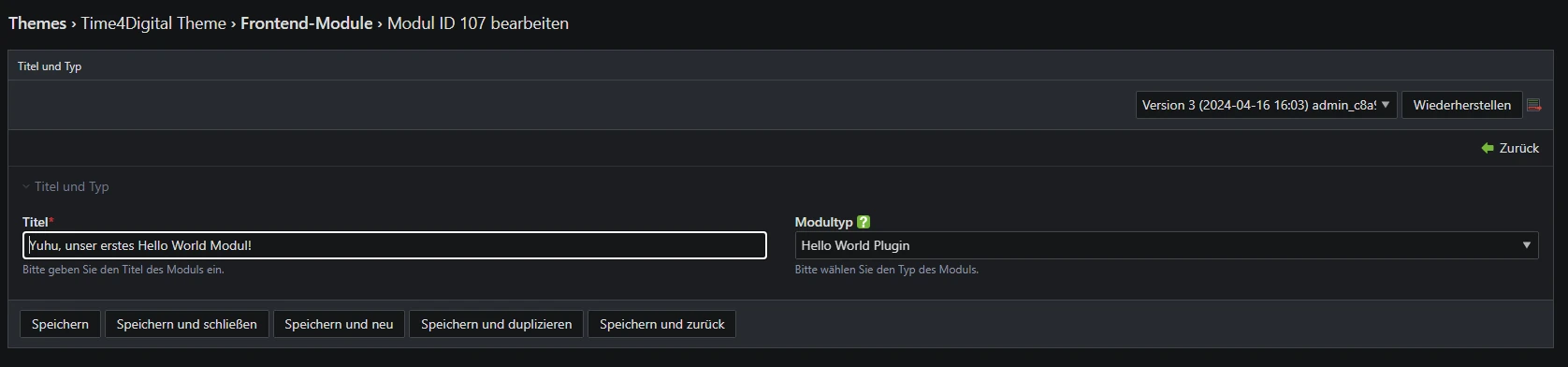
…and voilà! You can now create a new module in the backend under Themes > Frontend Modules and simply select the Hello World Contao Plugin as the module type.
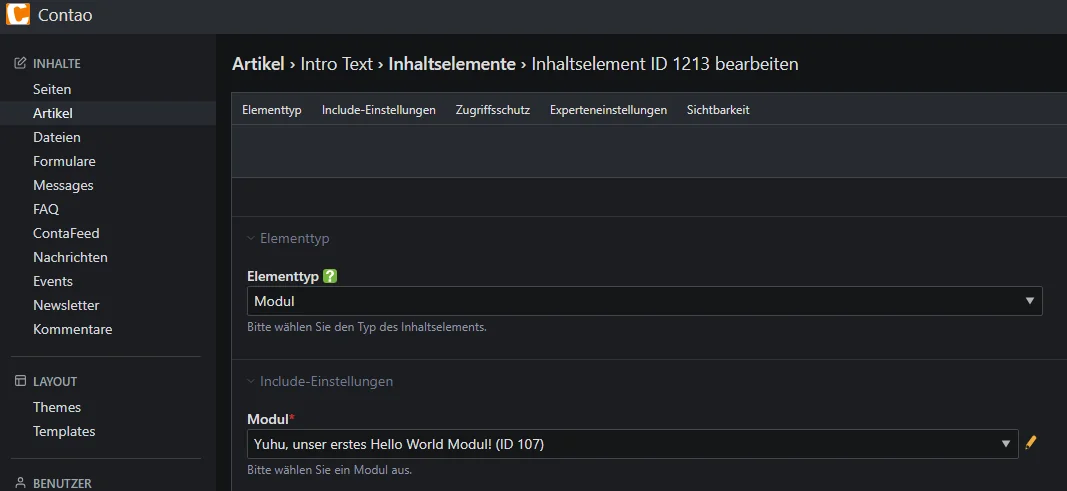
Then open any article (or similar content) and select the newly created module.
That was quite a bit of work already… but we’re not done yet. While our frontend module is sufficient to display something nice in the frontend using PHP logic, what if we also want to load data from a database and manage it via the Contao backend?
In the next section, we’ll take a closer look at exactly that.
Contao Backend Module: Structure and Database Integration
In this section, we create a backend module that loads data from a table called tl_messages and allows it to be edited. The module will be visible in the Contao backend under its own menu entry.
We will also extend the frontend module so that it reads data from the backend.
Creating the Database Table with DCA
Using a DCA PHP file, you can tell Contao that you want to create a new database table.
This allows you to define the table structure and control how the data is displayed.
./src/Resources/contao/dca/tl_messages.php
<?php

use Contao\DC_Table;

// The table name; the PHP file should be named accordingly.
$GLOBALS['TL_DCA']['tl_messages'] = [

    // Define what is shown in the Contao backend:
    'palettes' => [
        'default' => '{messages_legend},message;',
    ],

    // Define the SQL fields here:
    'fields' => [

        // This field is mandatory.
        'id' => [
            'sql' => "int(10) unsigned NOT NULL auto_increment",
        ],

        // This field is mandatory.
        'tstamp' => [
            'sql'   => "int(10) unsigned NOT NULL default '0'",
            'label' => 'TS',
        ],

        'message' => [
            'inputType' => 'text',
            'eval'      => [
                'tl_class'  => 'w50',
                'maxlength' => 255,
            ],
            'sql' => "varchar(255) NOT NULL default ''",
        ],
    ],

    // Define keys and additional attributes.
    'config' => [
        'dataContainer' => DC_Table::class,
        'sql' => [
            'keys' => [
                'id' => 'primary',
            ],
        ],
    ],

    // Define how the data is displayed in the backend.
    'list' => [
        'sorting' => [
            'mode' => 1,
        ],
        'operations' => [
            'edit',
            'delete',
        ],
        'label' => [
            'fields'      => ['id', 'message'],
            'showColumns' => true,
        ],
    ],
];
Field Translations
Using the XLF translation file, you can define labels and field descriptions for different languages.
./src/Resources/contao/languages/en/tl_messages.xlf
<?xml version="1.0" ?>
<xliff version="1.1">

<!-- Format: contao/languages/LANGUAGE/TABLE.php -->
<file
    datatype="php"
    original="contao/languages/en/tl_messages.php"
    source-language="en"
>

    <body>

    <!-- Legend label in the Contao backend -->
    <trans-unit id="tl_messages.messages_legend">
        <source>Messages</source>
    </trans-unit>

    <!-- Label of the "Message" field -->
    <trans-unit id="tl_messages.message.0">
        <source>Message</source>
    </trans-unit>

    <!-- Description of the "Message" field -->
    <trans-unit id="tl_messages.message.1">
        <source>Your individual message.</source>
    </trans-unit>

    </body>
</file>
</xliff>
Registering the Backend Module in Contao
The config PHP file must now be adjusted in the same way as for the frontend module.
./src/Resources/contao/config/config.php
<?php

use Time4digital\DylansHelloWorldBundle\Module\DylanHelloWorldModule;

// Frontend modules
// Under "miscellaneous", a new tab called
// "Hello World Plugin" will be created, which loads our frontend module.
$GLOBALS['FE_MOD']['miscellaneous']['Hello World Plugin'] = DylanHelloWorldModule::class;

// Backend modules
// Under the "content" menu category, a new menu item
// called "Messages" will appear, which manages the tl_messages table.
$GLOBALS['BE_MOD']['content']['Messages'] = [
    'tables' => ['tl_messages'],
];
Displaying Backend Data in the Frontend
To achieve this, both the template and the frontend module need to be adjusted.
./src/Module/DylanHelloWorldModule.php
<?php

namespace Time4digital\DylansHelloWorldBundle\Module;

use Contao\Module;

// This is where the CSS and JS files are registered.
// Format: bundles/bundleName/fileName.fileExtension
$GLOBALS['TL_CSS'][] = 'bundles/dylanshelloworld/styles.css';
$GLOBALS['TL_JAVASCRIPT'][] = 'bundles/dylanshelloworld/scripts.js';

class DylanHelloWorldModule extends Module
{
    // Define the template name here.
    // The name must match the template located in
    // ./src/Resources/contao/templates
    protected $strTemplate = 'mod_helloWorld';

    protected function compile()
    {
        // Using $this->Template->variableName creates variables
        // that can be accessed within the template.
        $this->Template->message = 'Hello World!';

        // The Module class allows us to quickly load
        // database entries using the Contao Database class.
        // Here, the data is retrieved via an SQL query.
        try {
            $objEntries = $this->Database->execute(
                "SELECT * FROM tl_messages"
            );

            $this->Template->entries = $objEntries->fetchAllAssoc();
        } catch (\Exception $e) {
            // If this fails, an empty array is simply
            // assigned to the template.
            $this->Template->entries = [];
        }
    }
}
./src/Resources/contao/templates/modules/mod_helloWorld.html5
<?php $this->extend('block_searchable'); ?>

<?php $this->block('content'); ?>

<!-- Here we output the value of the message variable -->
<div class="dylan-hello-world-container">
<?= $this->message; ?>
</div>

<!--
Here we iterate over the entries array and extract
the message value for each element
-->
<div class="dylans-hello-world-live-container">
<ul>
    <?php foreach ($this->entries as $entry): ?>
    <li><?= $entry["message"]; ?></li>
    <?php endforeach; ?>
</ul>
</div>

<?php $this->endblock(); ?>
Finally, we made it! After many ups and downs, we’ve reached the summit. Time to celebrate! ;-)
After reinstalling the Contao plugin, a new menu item called “Messages” should now be available, allowing you to create new messages. The frontend module should then display all of these messages.

We hope this blog article has helped you learn more about developing Contao plugins.
It’s important to note that there are multiple ways to implement such a plugin, and this article represents just one possible approach. You are completely free in how you develop your Hello World plugin, as long as the foundation is correct and the Contao Manager recognizes and installs it as a plugin.
You can find additional information here.
You can also download the plugin directly via this link and, of course, continue developing it further.
Thank you very much for reading this blog article! I hope you enjoyed it and learned something new. Have fun developing!
The article can also be read in English as a Medium article in English.
